Canvas
Edit & draw
The Edit screen has two modes that share one canvas: Edit for selecting and arranging, Draw for sketching new shapes.
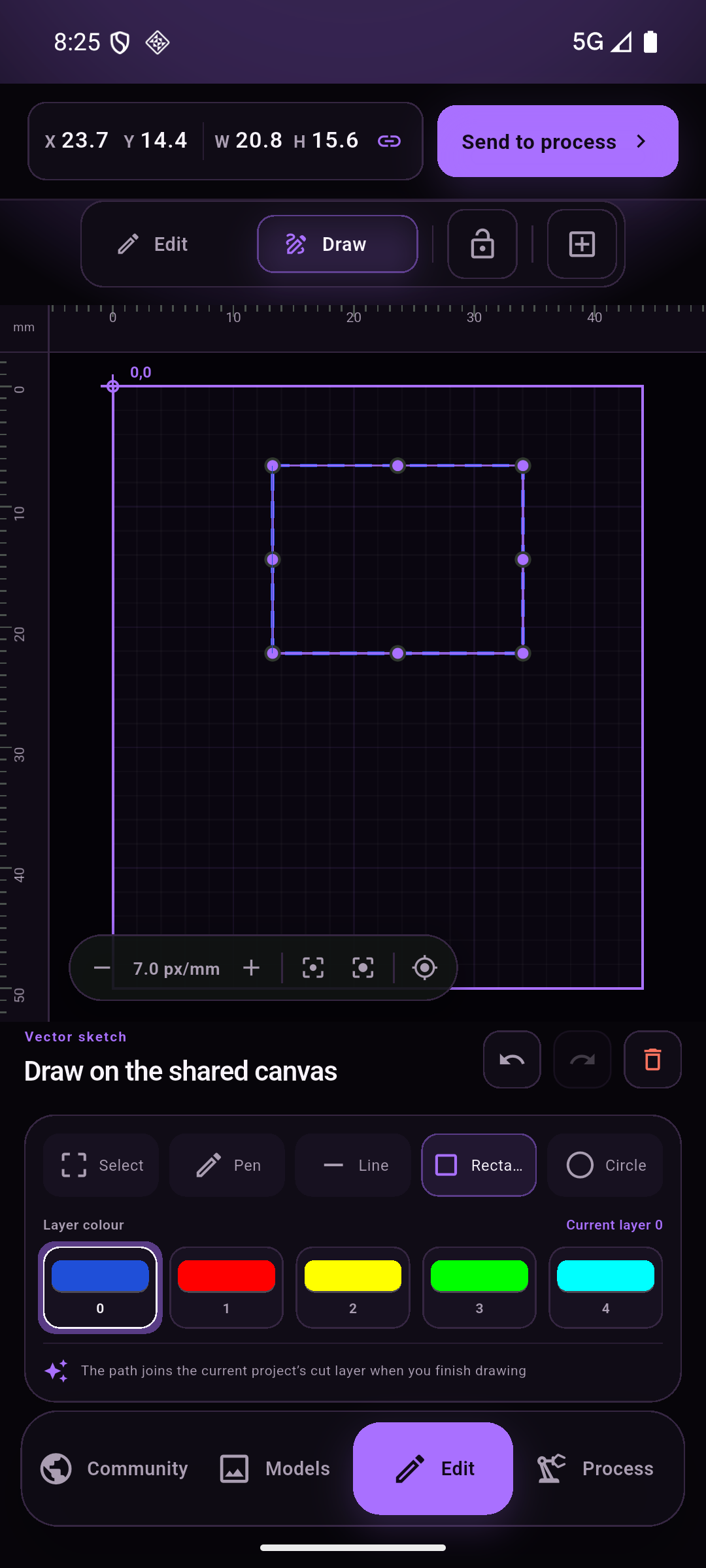
Two modes, one drawing
| Mode | What it is for |
|---|---|
| Edit | Select objects, move them, scale them with the handles, arrange with the Select / Layers / Text / Vector panels. |
| Draw | Create new geometry with Pen / Line / Rectangle / Circle. Each stroke joins the cut layer that is selected below the canvas. |
The path stays in sync between the two modes — a shape drawn in Draw mode is the same object you select and move in Edit mode.
Drawing tools
- Pen — freehand polyline; lift to finish a stroke.
- Line — a straight segment, snapped to the grid and to nearby nodes.
- Rectangle — drag corner to corner. Width and height are shown live in the header (
W 50.8 H 38.1in the screenshot). - Circle — drag from centre or corner, depending on the handle you grab.
Cut layers
Five layer colours sit under the tools (0–4). Every stroke belongs to
the layer that was current when it was drawn, and the process parameters (power, speed, passes)
are set per layer. The badge on the right tells you which layer is current.
Snapping
Nodes snap to endpoints and control points of other shapes, and to the selection-box handles. The magnet button in the zoom bar sets the snap range in pixels. Text objects do not provide snap nodes — the four corners of their box and its centre are the only handles.
Zoom and fit
| Control | Action |
|---|---|
− / + | Zoom out / in. The middle readout is the current scale (2.9 px/mm). |
| Frame icon | Fit the drawing into the machine's work area |
| Crosshair icon | Centre the view on the origin |
| Target icon | Snap range |
Importing
Models → Import file accepts SVG, DXF and AI (imported as vectors, nodes preserved) and Choose image accepts JPG / PNG for raster work. Imported geometry is mirrored once on import so that it lands on screen exactly as the file looks — which also means the cut lands where the screen shows it.