Devices
Connect a machine
Tap the device bar at the top of any screen to open Device connection. This page is where devices are added, inspected and connected.
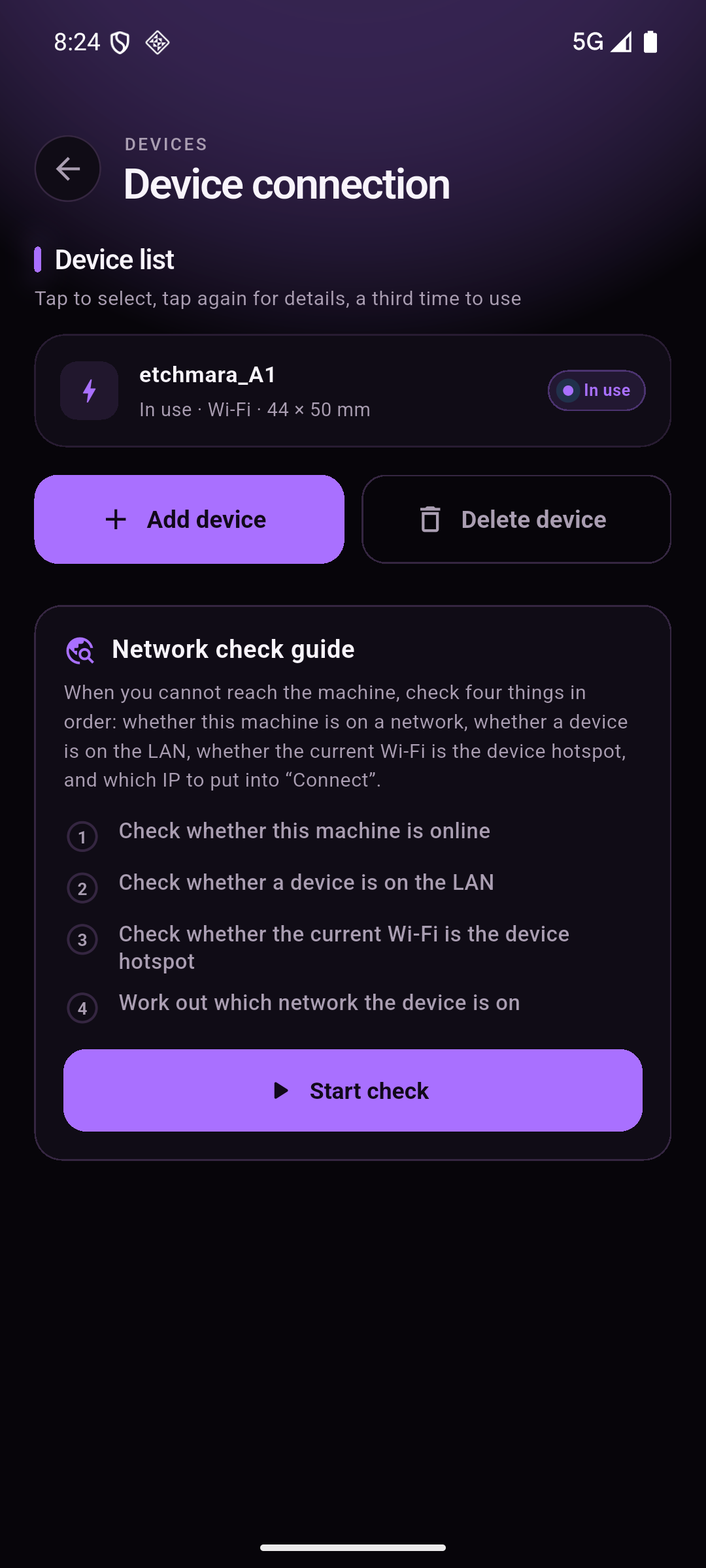
The device list
The list is a three-tap control, exactly as the caption says:
| Tap | What happens |
|---|---|
| First | Selects the row |
| Second | Opens the device details (work area, origin corner, Wi-Fi, connection address) |
| Third | Makes it the device in use |
The row itself tells you the model, how it is reached (Wi-Fi) and its work area (44 × 50 mm for the etchmara_A1 template).
Add a device
Tap Add device. You can either start from a built-in machine model or define everything yourself.
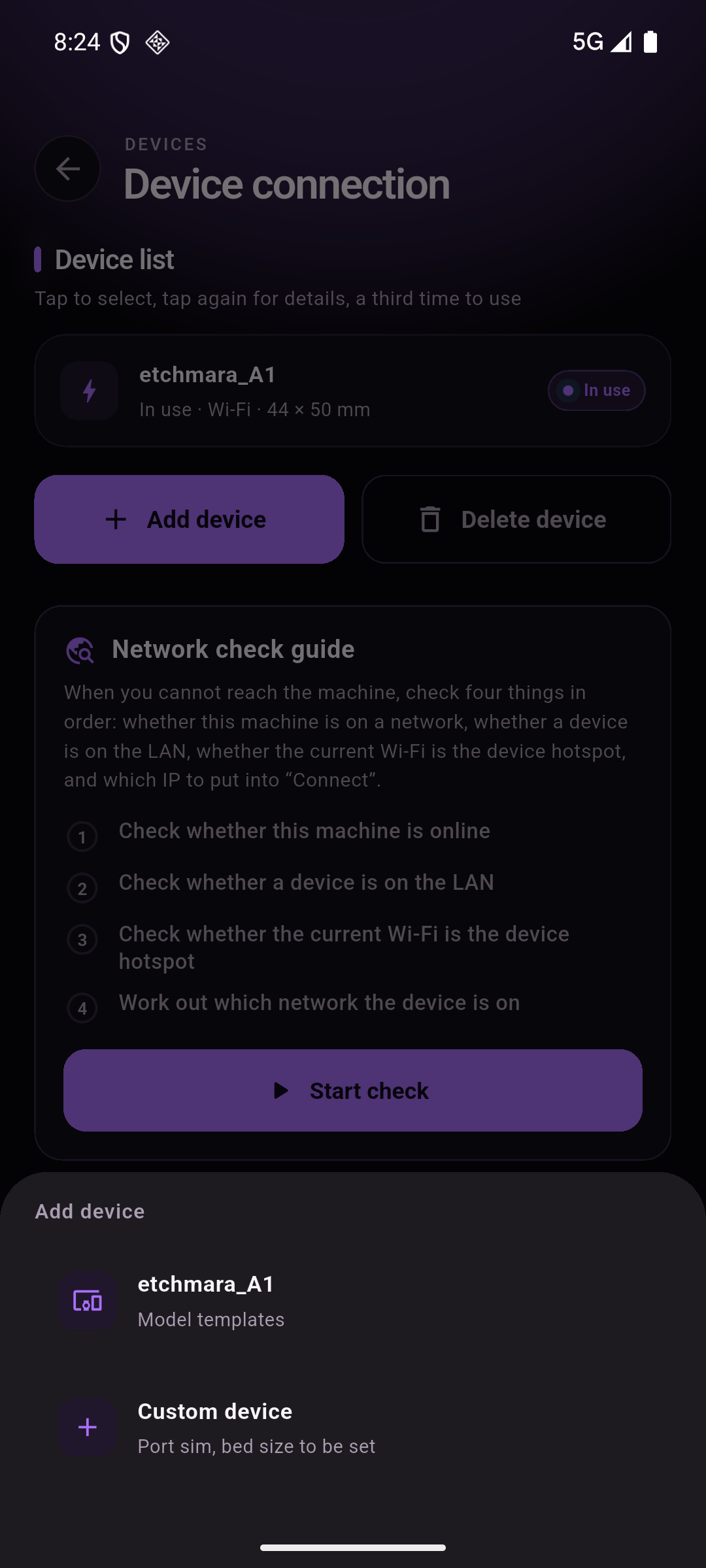
| Choice | Behaviour |
|---|---|
etchmara_A1 | Added immediately from the bundled model package: work area 44 × 50 mm, origin corner, and the factory material presets (plywood, cardboard, paper…) come with it. |
| Custom device | Starts from the current machine's work area and origin, then lets you name it and edit everything. The port starts as sim until you enter an address. |
The network check guide
When you cannot reach the machine, tap Start check. The card runs four checks in a fixed order and, for each one, prints a conclusion plus the exact next thing to press. It is real-time: it disappears as soon as the controller connects, and comes back when the link drops.
| # | Check | If it fails |
|---|---|---|
| 1 | Is this phone on a network? | “Not on a network” + a button that opens the system Wi-Fi settings |
| 2 | Is a device on the LAN? | Not found → continue to step 3. Found but unreachable → it says the software side is at fault |
| 3 | Is the current Wi-Fi the device hotspot? | Yes → offers 192.168.0.1 and a Connect button. No → scans nearby networks and tells you which one to join |
| 4 | Which network is the device on? | Asks you to switch to the network that actually has the machine |
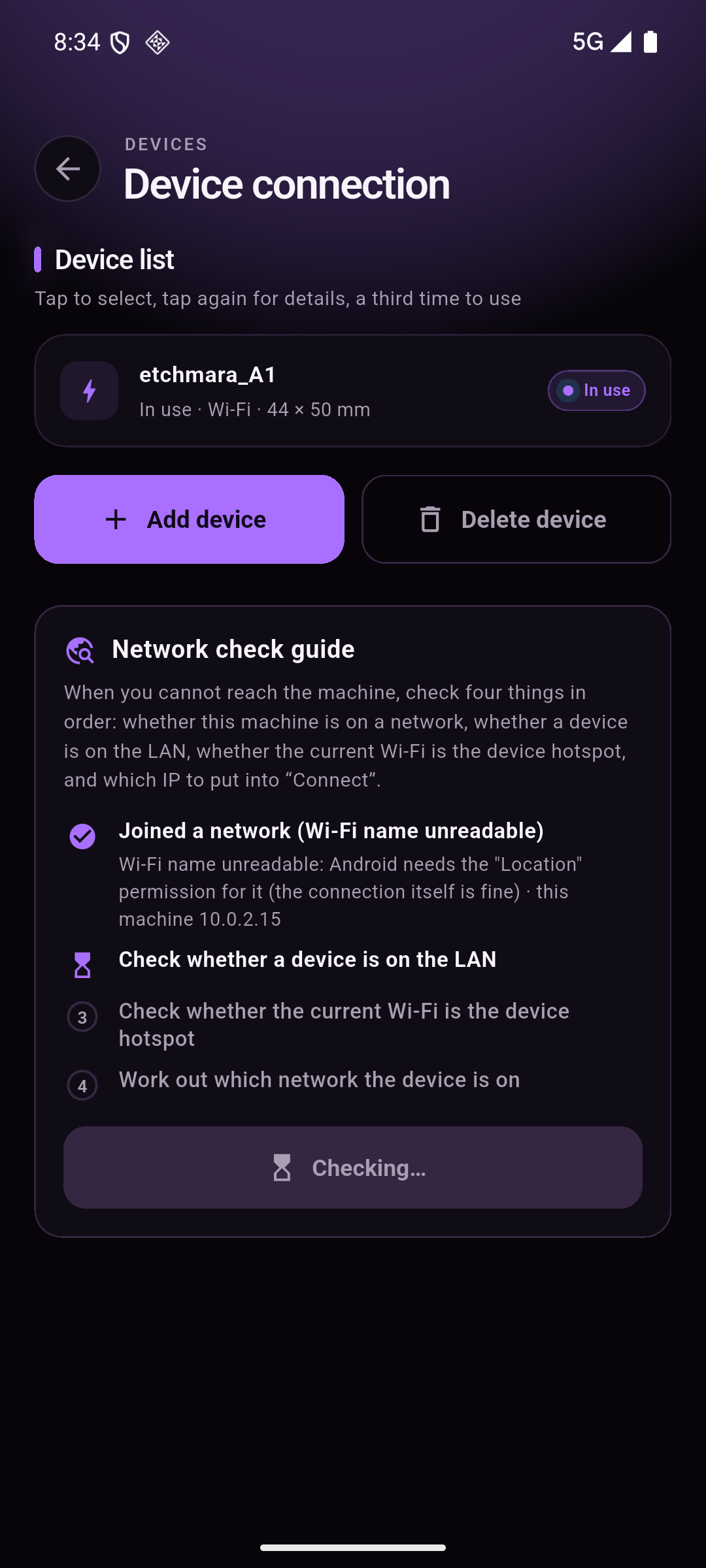
Reading the result
- Joined a network (Wi-Fi name unreadable) — the phone is on a network, but Android hides the SSID from apps that lack the Location permission. The connection itself is fine; grant location to see the name.
- No device found on the LAN — neither automatic discovery (mDNS) nor the fixed hotspot address answered. The card lists what it actually tried.
- No device hotspot found — the device may be off — no
Etchmara_A1_XXXXXXnetwork is nearby. Check the power light and the screen, then press Continue check.
Joining the machine's own hotspot
Out of the box the controller raises its own access point. The name is
Etchmara_A1_XXXXXX (the suffix differs per machine) and the factory password is
12345678.
On the hotspot, the controller answers at 192.168.0.1. Step 3 of the check offers
to write that address into the device profile and connect in one tap. Without that write the
app would keep dialling the placeholder sim.
Which address does the app use?
Each device stores its own connection address. In a home network the controller is usually
found by mDNS (the hostname the grbl firmware advertises) or by a fixed address you enter
yourself; on its own hotspot it is always 192.168.0.1. The top bar shows the
state of the current device only — there is exactly one live link.
grbl is the most widely implemented controller protocol, so the same app drives grbl-class boards (grblHAL included) as well as the machine this build ships with. The link is a plain telnet-style stream on port 23, which every grbl sender uses.